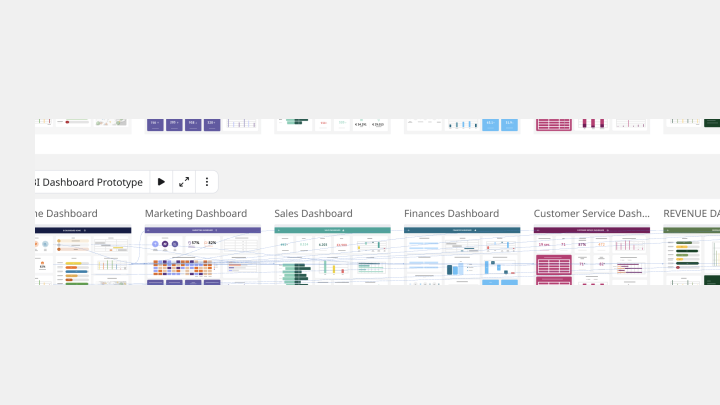
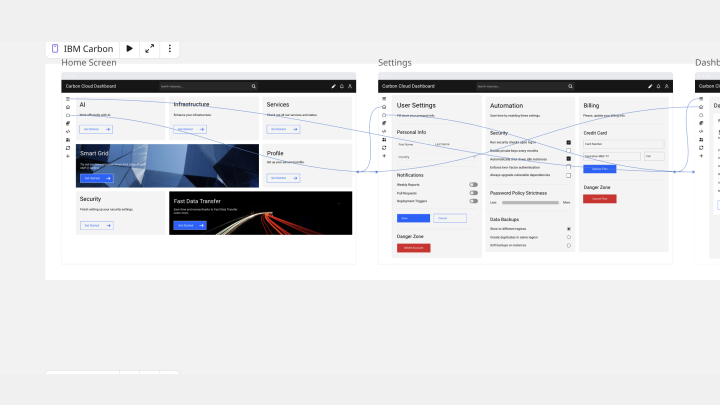
About the Web App and Dashboard Prototype Templates
Use a Web App or Dashboard Prototype Template to visualize your application’s structure, interactions, and overall user experience. Product and design teams rely on prototypes to showcase functionality, test workflows, and validate design decisions before development begins. Miro’s Web App and Dashboard Prototype Templates help you plan and refine your interface from the start, ensuring alignment between design, data, and development.
How to Use the Web App and Dashboard Prototype Templates
1. Select the Web App or Dashboard Prototype Template
Open the Templates Library from the left toolbar and choose the template that fits your project to begin designing your app or dashboard.
2. Drag and drop your prototype components
Use Miro’s drag-and-drop tools to build screens, dashboards, and interactions. The Prototype Library offers pre-built UI elements, charts, icons, and interactive components so you can quickly assemble and customize your prototype.
3. Ideate and co-create
Collaborate with your team in real time or asynchronously. Add comments directly to the prototype, tag stakeholders for feedback, and iterate rapidly as your design evolves.
4. Share your web app or dashboard prototype
Once your prototype is ready, export it as a PNG or PDF, or share your board link so others can explore your design and contribute directly.
How Miro Helps You Create a Web App or Dashboard Prototype
Step 1: Define your app or dashboard workflows
Outline the main actions users will take and the key metrics or features they need to access. Align with your team on goals to ensure your prototype reflects the intended user experience.
Step 2: Sketch your screens and interactions
Use prototype components to map out each screen, dashboard view, and interaction flow. Consider usability, responsive design, and data presentation to create a functional and intuitive interface.
Step 3: Add real content and data
Incorporate realistic copy, charts, and sample data to ensure your prototype supports the intended actions and decisions. Real content improves feedback accuracy and design validation.
Step 4: Annotate your prototype
Document interactions, design decisions, and requirements. Clear annotations help stakeholders understand your intent and keep everyone aligned throughout the design process.
Explore additional web app and dashboard prototype templates to accelerate your design workflow and bring your next digital product to life.